 Andrew Adams · Co-Founder & Operations at Wireflow ·
 AI Talking Photo
Most talking photo tools hide the model behind one button.
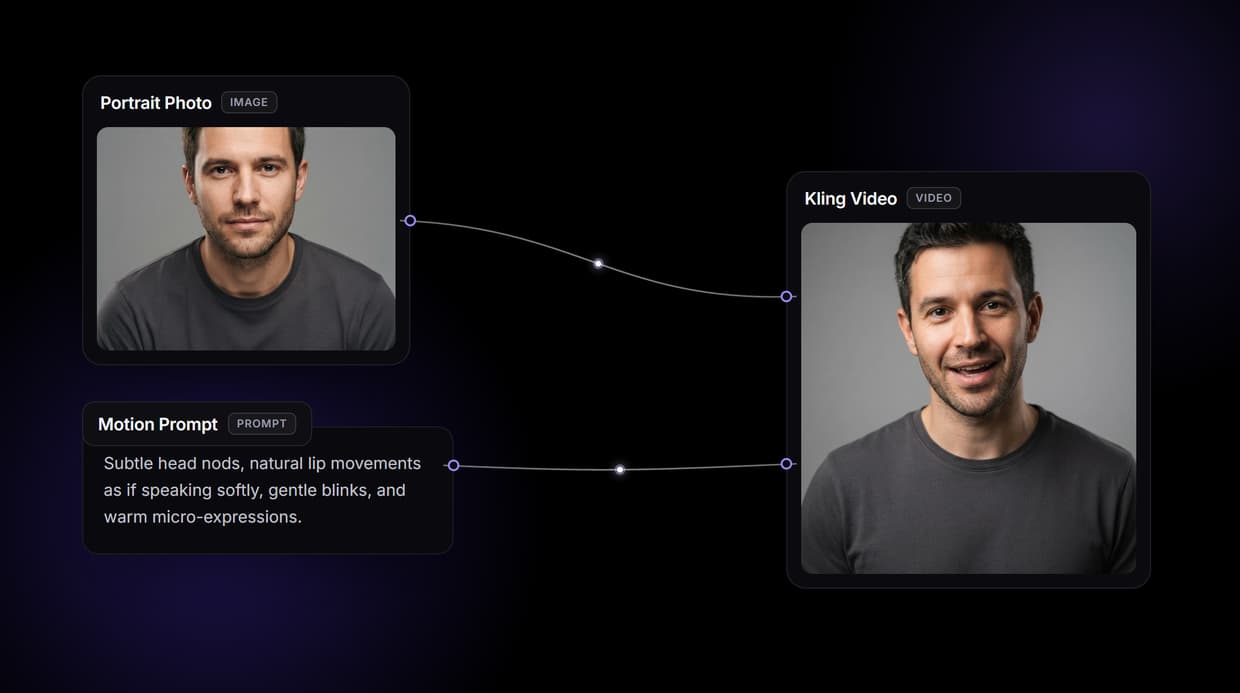
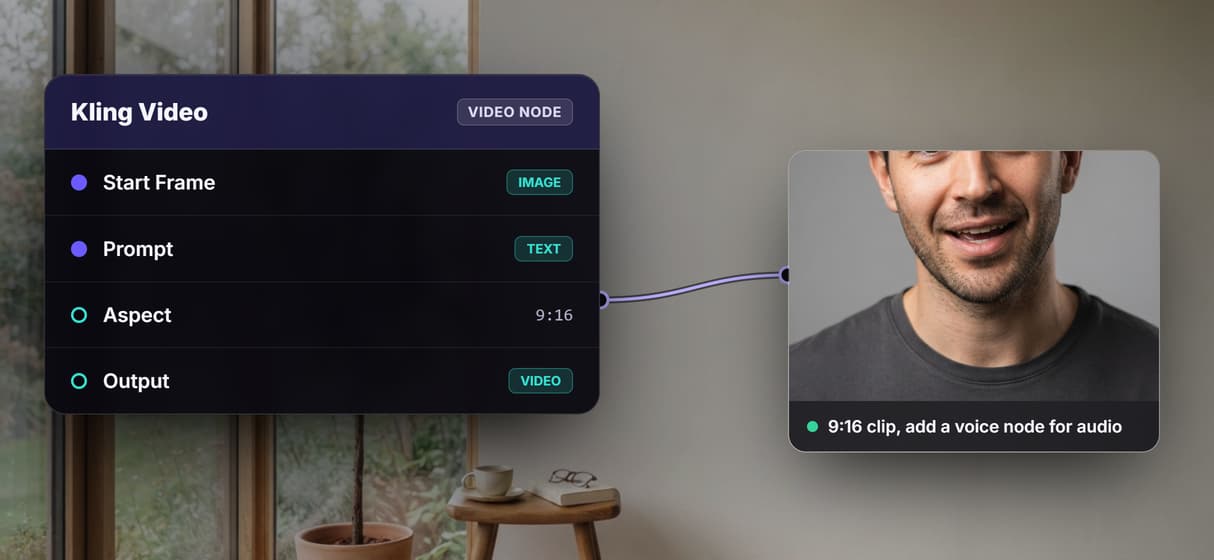
Wireflow shows the graph: a Portrait Photo and a Motion Prompt feed a Kling Video node that animates the still into a short vertical clip. Free to build, pay per generation.
Free to build · no credit card
Why animate a photo on a canvas
Most talking photo tools are a single upload box wired to a hidden model: drop a face in, press a button, and accept whatever clip comes back. When the motion is stiff or the framing is wrong, there is nowhere to turn, no view of how the video was made, and no way to reuse the recipe on the next portrait. The upload box is the whole interface, and its ceiling arrives fast.
Wireflow takes a different shape. A talking photo is a small workflow you own on a node canvas: a Portrait Photo node holds the still, a Motion Prompt node holds the movement, and both wire into a Kling Video node that animates the result. It runs on hosted compute in the browser with nothing to install, and the same canvas drives the rest of your video work, from an AI avatar generator to full multi-clip pipelines.
What the talking photo flow gives you
Portrait input
An image node takes your front-facing still and passes it to the video model as the start frame.
Motion prompt
A text node describes the movement in plain words: head nods, blinks, and speaking-style mouth motion.
Video render
The Kling Video node reads both inputs and returns a short vertical talking-head clip at 9:16.
Swappable models
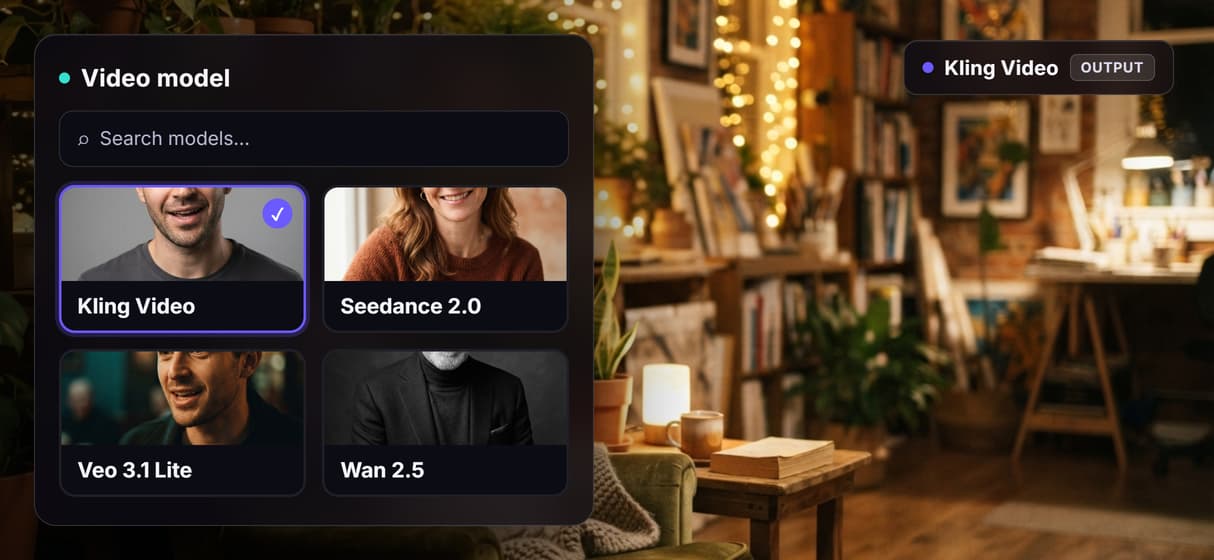
Drop Seedance 2.0, Veo 3.1 Lite, or Wan 2.5 into the same node when a look calls for it.
Add a voice
Wire a voice node and a lip-sync model onto the flow when you need spoken audio synced to the mouth.
Share by link
The workflow is versioned and shareable, so a teammate runs the exact same talking photo graph.
How the talking head graph runs
The workflow behind this page's button is deliberately small: three nodes and two wires, grouped together so they stay legible.
- Portrait Photo holds the still. One image node takes your front-facing photo and feeds it into the video model as the start frame.
- Motion Prompt holds the movement. A block of text sets the head nods, blinks, and speaking-style mouth motion, and it wires into the model's prompt input.
- Kling Video animates it. The video node reads the photo and the motion text and returns a short vertical clip at 9:16.
The motion in this flow is driven by the prompt, not by an audio track, so the mouth moves in a speaking style rather than syncing to specific words. To narrate with a real voice, add a text-to-speech node and an audio-driven lip-sync model to the same canvas, then wire them in. And because the graph lives among the platform's hosted models, the clip can roll straight into more work, like an animated still image sequence, without leaving the browser.
When another tool is the better call
If you want a one button phone app that turns a selfie into a canned talking clip with fixed styles and no canvas to touch, a consumer app is built for exactly that, and this page will not pretend otherwise. Wireflow gives you the graph instead, which is more control than a casual one off clip needs.
Two honest limits matter here. First, this flow animates motion from a text prompt: it is not word-level lip sync to your audio, so spoken narration needs a voice node and a lip-sync model added to the canvas. Second, because it animates a real uploaded photo, only use portraits you have the rights to, and never make a talking video of a real person without their consent. To generate a synthetic presenter from scratch instead, start with an AI face generator flow.
More Than Just AI Talking Photo
See the whole pipeline
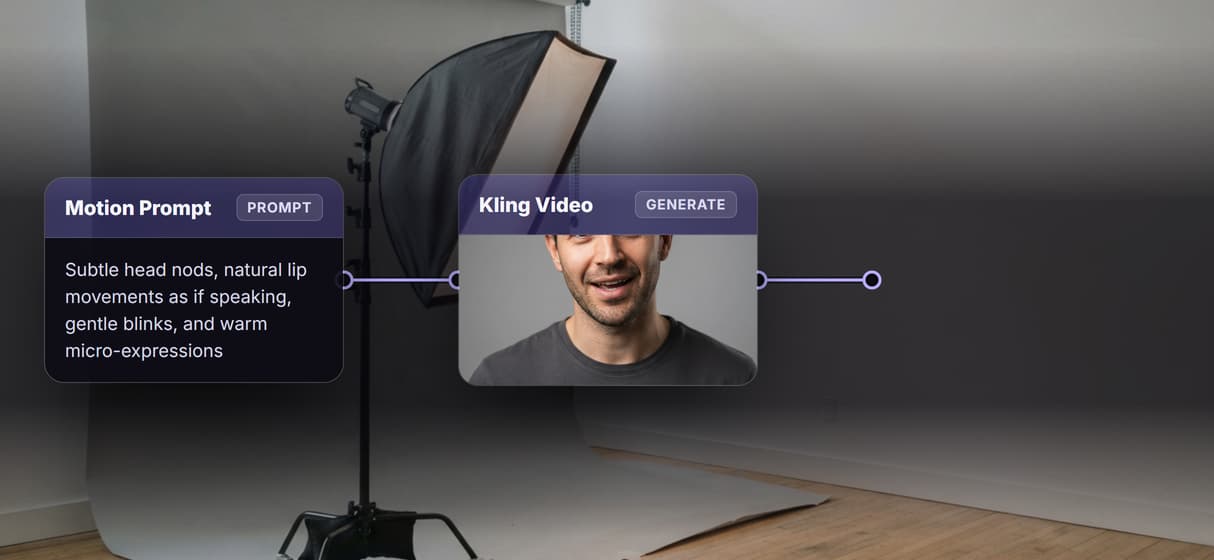
The flow sits in the open: a Portrait Photo and a Motion Prompt feed the Kling Video node. Rewire it like any AI video generator graph.
One photo, many clips
Reuse a single headshot across versions by editing the motion prompt and rerunning. Chain it into an image to video pipeline.
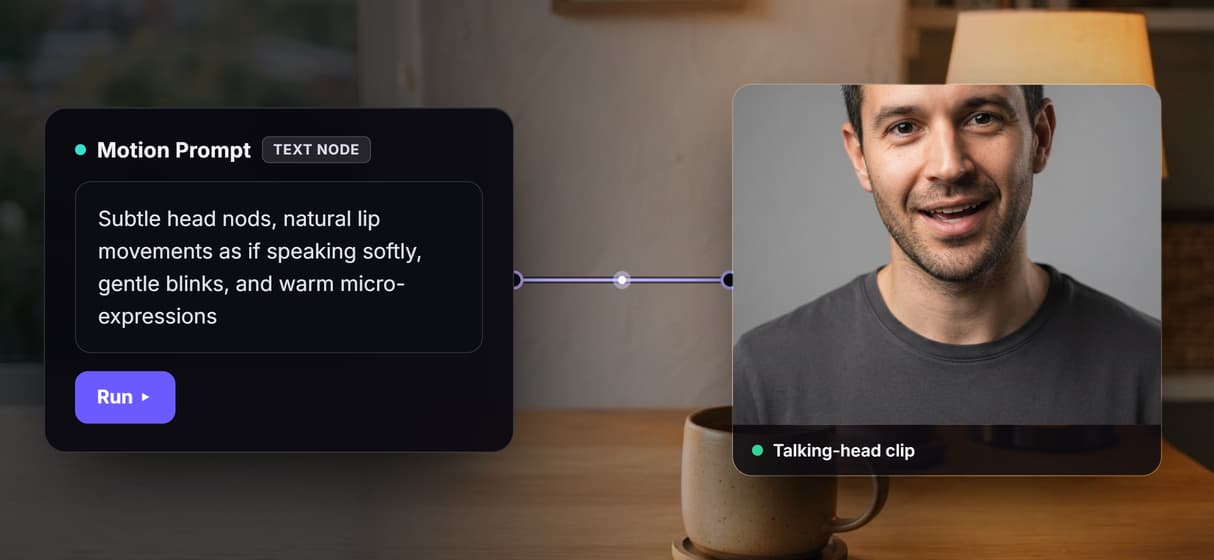
Swap the video model
Kling Video animates by default; drop Seedance 2.0, Veo 3.1 Lite, or Wan 2.5 into the same node. Reuse it inside an AI avatar generator flow.
Add a real voice
This flow animates motion, not audio. Add a voice node and a lip-sync model for spoken narration, starting from AI voice cloning. If the clip comes from Seedance, our walkthrough on adding your real voice to a Seedance 2.5 video covers the audio chain.
Pay per generation, build free
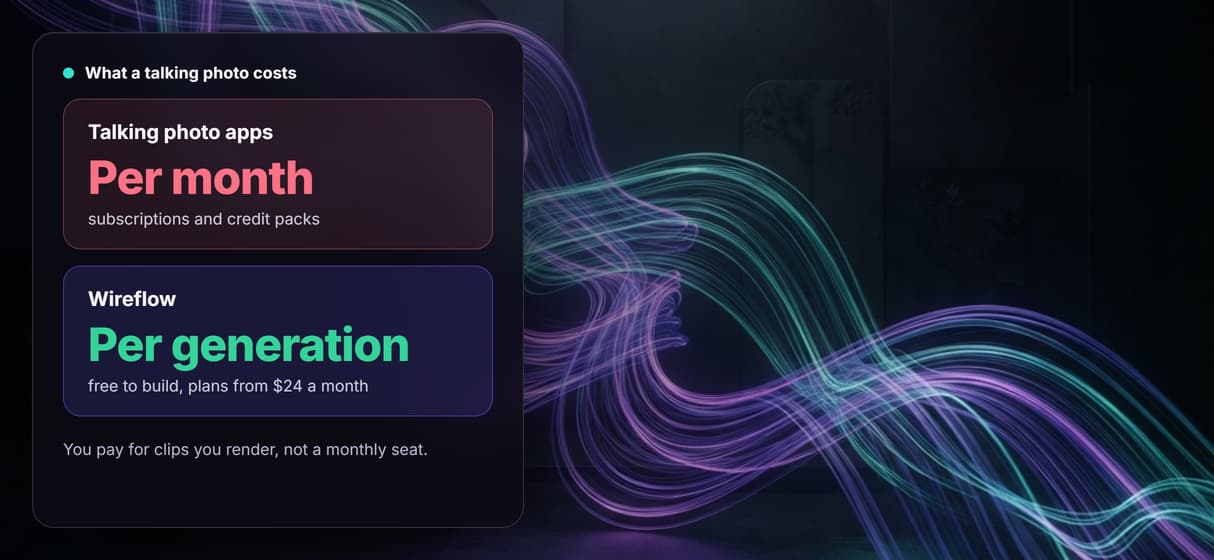
Building the graph on the canvas costs nothing; you pay only when a clip renders. Iterate like an AI image animator with no monthly seat.
Build Any AI Workflow
AI Models Integrated
Full Commercial License
FAQs
It is a short video made from a single still portrait where the subject appears to move and speak. On Wireflow it is a node workflow: a Portrait Photo and a Motion Prompt feed a Kling Video node that animates the still.
Written by
Andrew Adams · Co-Founder & Operations at Wireflow
Runs client operations and content strategy at Wireflow. Works directly with creative teams and agencies to build production AI workflows.
Make a portrait talk, on a graph you control
Open the flow, upload a portrait, write the motion, and run it: a short vertical talking-head clip from a graph you can rerun and reshape. Building is free; you pay per generation, not per month.